| This field identifies the reviewer of the active invoice. |
| This field identifies the status of the active invoice. Pending is the default. All Non-Exported: Displays invoices in all statuses that are still in the routing system, and not yet exported to the accounting system. These are invoices that are assigned directly or by proxy to this Reviewer. Approved: Displays all invoices approved by this Reviewer. This includes those invoices approved on behalf of others through proxy. Approval Alert: Displays all invoices requiring special attention. These are invoices that are assigned directly or by proxy to this Reviewer. Non-Exported - Hold: Displays all invoices placed on hold that are still in the routing system and not yet exported to the accounting system. These are invoices that are assigned directly or by proxy to this Reviewer. Pending: Displays all invoices in a Pending status. These are invoices that are assigned directly or by proxy to this Reviewer. Rejected: Displays all rejected invoices that are assigned directly or by proxy to this Reviewer. Reapprove: Displays all invoices with a coding change after this Reviewer approved this invoice. Occurs when a second Reviewer makes a coding change, requiring this Reviewer to re-review and reapprove the invoice. (Bridge Setting): For some accounting systems, there are bridge settings that allow invoices to be grouped together by the following: Job (Enable Approve Invoices Job Filters) Work Order (Enable Approve Invoices Work Order Filters) Property (Enable Approve Invoices Property Code Filters)
|
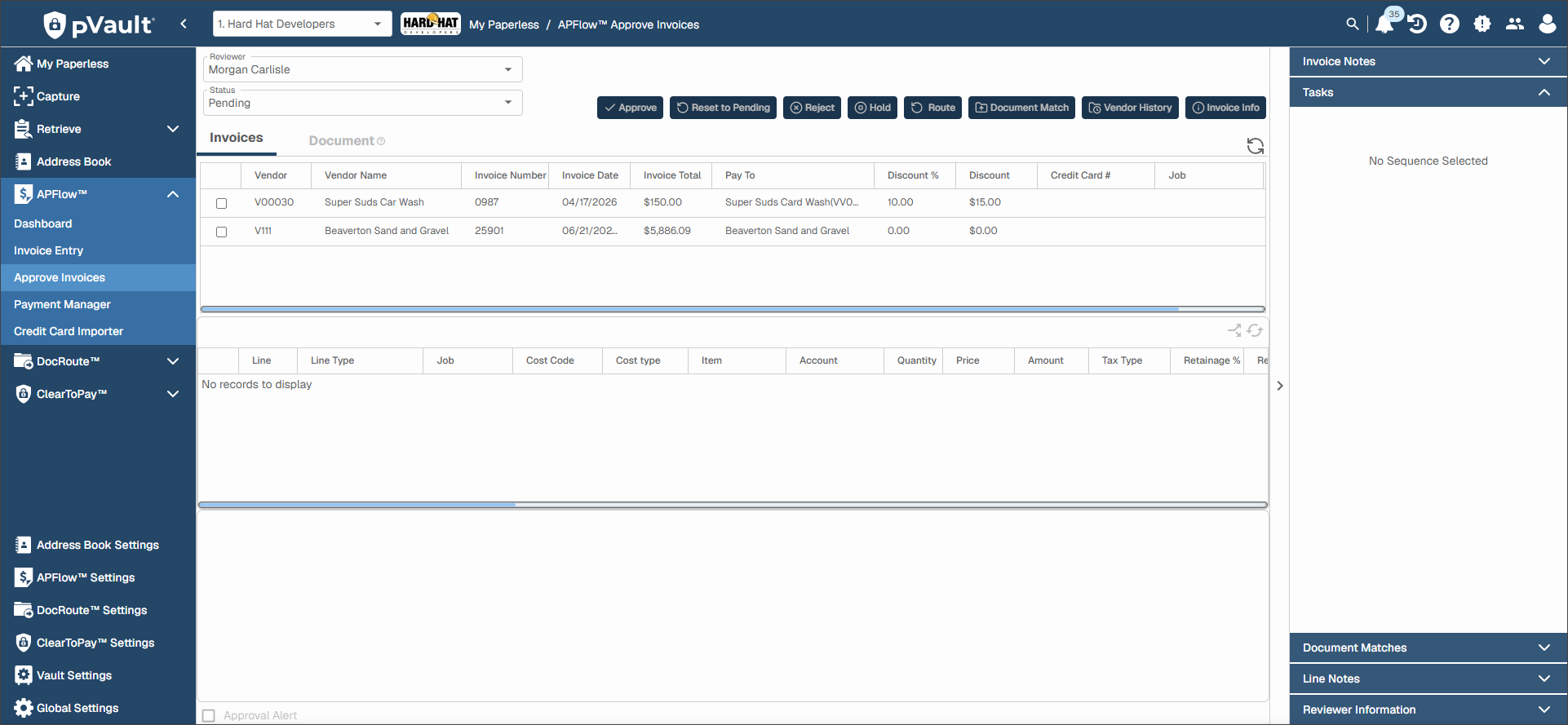
| Click Approve to approve the current invoice. NoteWhen you do so, validation rules run against the current invoice to ensure that all required coding is filled in and valid. If there is missing or incorrect coding, a Validation Info dialog displays identifying the error. If you encounter validation errors, update the invoice coding as needed. Click Approve again. An invoice note is systematically created with the time stamp and invoice lines approved by the Reviewer. The invoice then moves to the Reviewer's Approved folder and remains there until it is exported by a Processor. NoteFor pVault® users interfacing with the Sage Intacct accounting system and tracking compliance, see Sage Intacct APFlow™ Bridge Settings for prerequisites, details and additional functionality.
|
| By clicking Reset to Pending, a Reviewer can cancel the "approval" of an invoice currently in the Approved folder and move it back to the Pending folder. In the Approved list, click to highlight an invoice that needs to be moved back to a Pending status. A Reset to Pending Reason note text box may display, prompting you to add an explanation for returning the invoice to Pending. If this dialog does not display, it may be because a bridge setting, Require Invoice Reset to Pending Notes, is not selected in Universal Bridge Settings. Type a reason for resetting the approved invoice back to a Pending status. Click Save. The invoice moves out of the Approved folder and redisplays in the Pending folder.
|
| Click Reject to return the invoice back to the Processor assigned to the invoice. In the Pending list, click to highlight an invoice that needs to be rejected and returned to the Processor. A Reject Note note text box may display, prompting you to add an explanation for returning the invoice to the Processor. If this dialog does not display, it may be because a bridge setting, Require Invoice Reject Notes, is not selected in Universal Bridge Settings. Provide information to help the Processor take the appropriate action with the invoice.
|
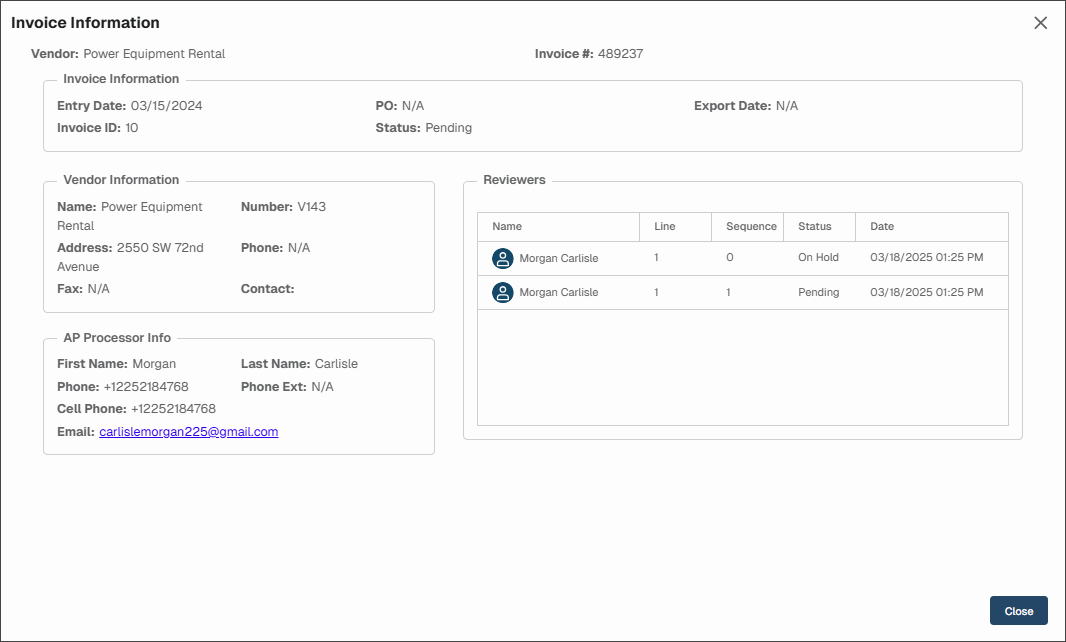
| Click Hold to retain the invoice in the Pending folder, but with a Hold status. In the Pending list, click to highlight an invoice that should be placed on hold. A Hold Note text box may display, prompting you to add an explanation for placing the invoice on Hold. If this dialog does not display, it may be because a bridge setting, Require Invoice On Hold Notes, is not selected in Universal Bridge Settings. Provide information to help the Processor take the appropriate action with the invoice. Once you click Hold, the line number and associated reviewer in the Invoice Information dialog displays as On Hold in the Status column. The Reviewer Hold column in the top grid systematically updates and displays Yes or No, based on the hold status of the invoices. ImportantIf you have placed an invoice on hold, the button label now reads: Remove Hold
|
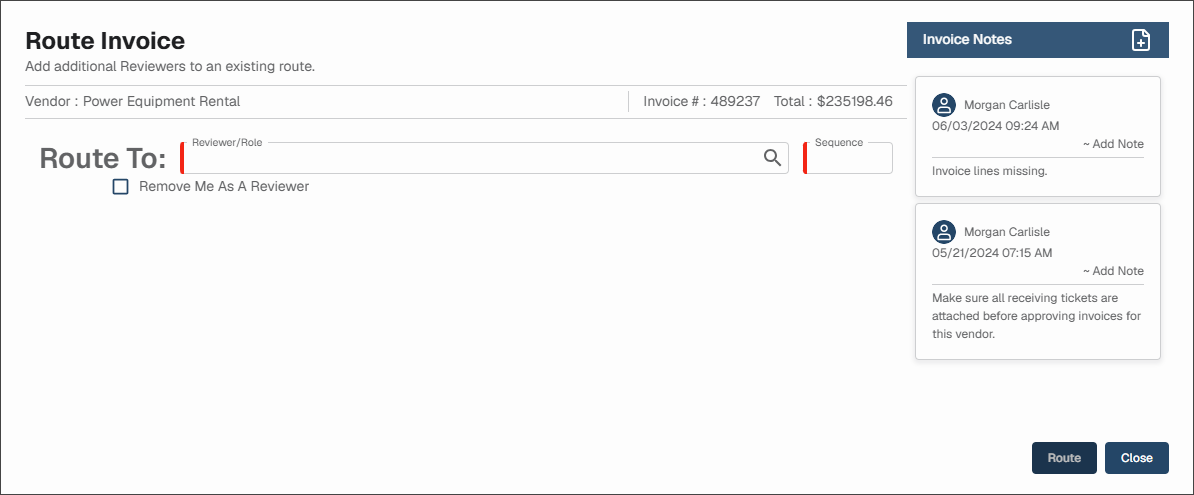
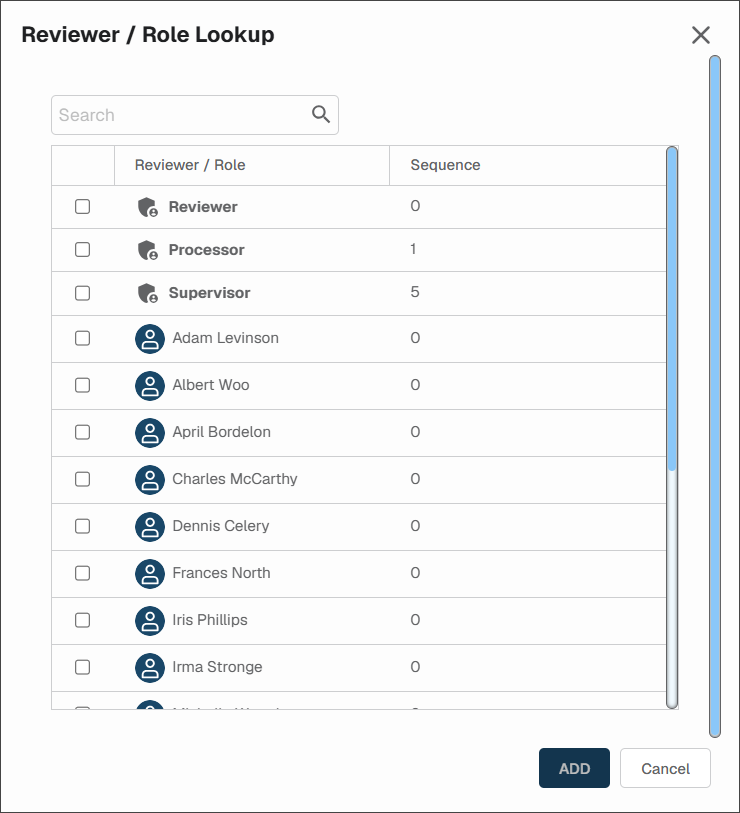
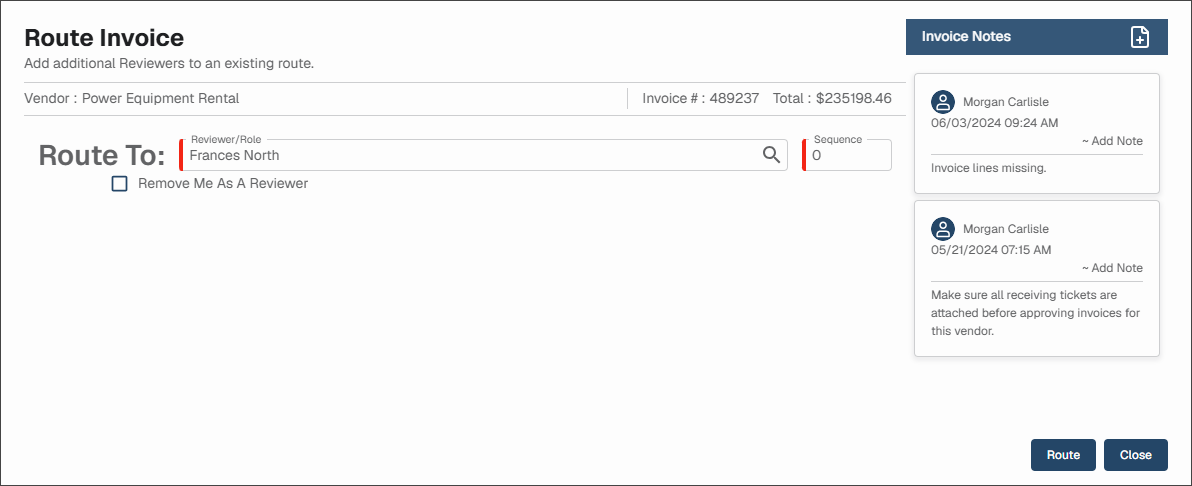
| You can only route to a single person from the Approve Invoices page. If you are a route recipient who determines a different individual should review what was sent to you, complete the following steps: Click Route to access a Route Invoice dialog: The Vendor, Invoice # and Total fields are systematically populated. Click the Route To field lookup  icon to access the Reviewer / Role Lookup dialog similar to the following: icon to access the Reviewer / Role Lookup dialog similar to the following: Select the Reviewer. Click the check box adjacent to the name of the individual to whom the route should go. Click Add. The populated Route Invoice dialog displays: Update the Sequence field number, if appropriate. If you click the Remove Me as A Reviewer check box, you are not only transferring your Reviewer responsibilities for the document(s) to be reviewed but also any associated Tasks and Events. If you leave the Remove Me as A Reviewer check box blank, you retain the responsibility to review the document(s) as well as to complete any associated Tasks and Events. The Reviewer to whom you route the document is only responsible for reviewing it—not for your associated Tasks and Events. In the Invoice Notes pane, click the Add Note  icon to add an invoice note in the dialog. icon to add an invoice note in the dialog. Click Route.
|
| Click this button to open the Match Documents page. View the invoice and any supporting documentation that the Processor attached to the invoice.
|
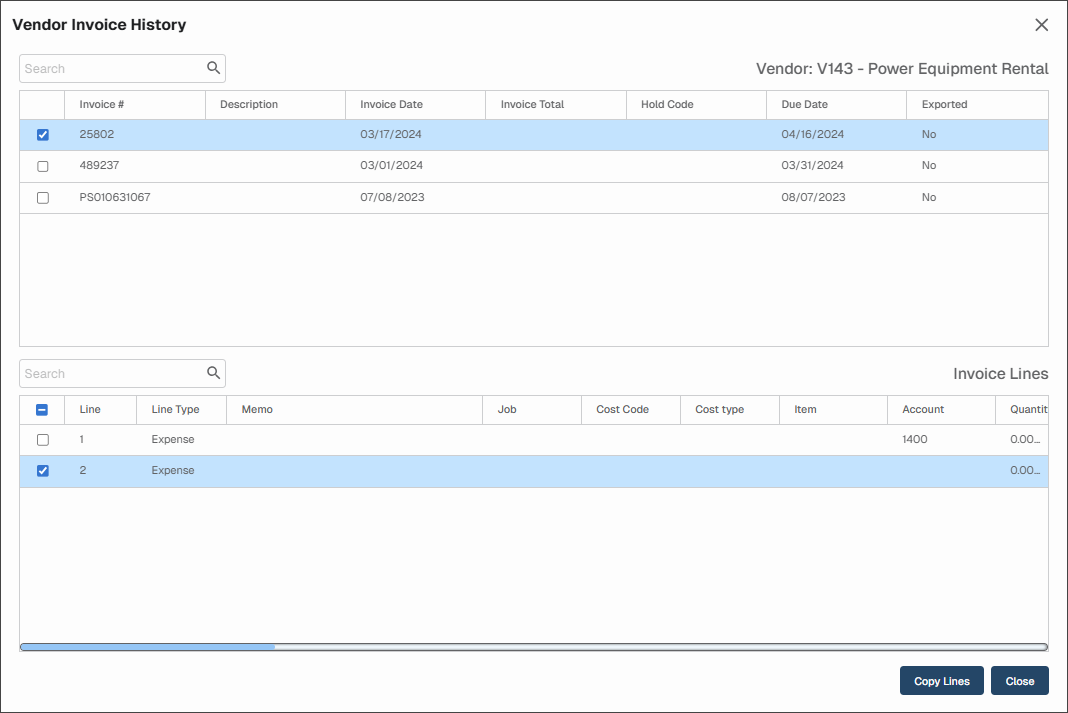
| Click this button to open the Vendor Invoice History dialog. Past invoices for the vendor display. There is a Search field where you can start to enter an invoice number to narrow the list. Not only can you filter on the Invoice # column entries, but you can also filter on the Description column entries. |
| Click this button to display additional information about the invoice and the vendor. An Invoice Information dialog similar to the following displays: NoteIf, while in Approve Invoices, you click Hold for a specific line, the Status column identifies the associated reviewer and reflect that the line is On Hold. |
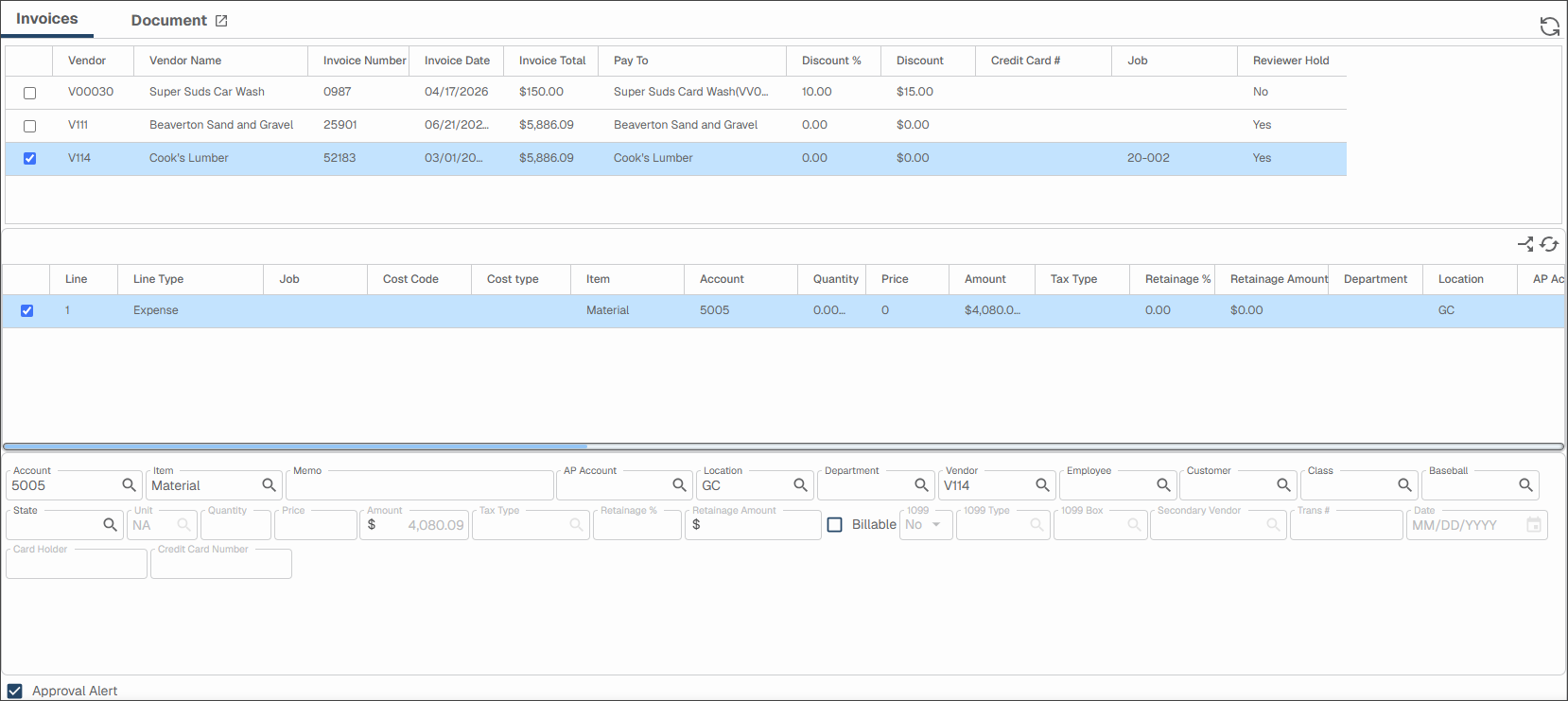
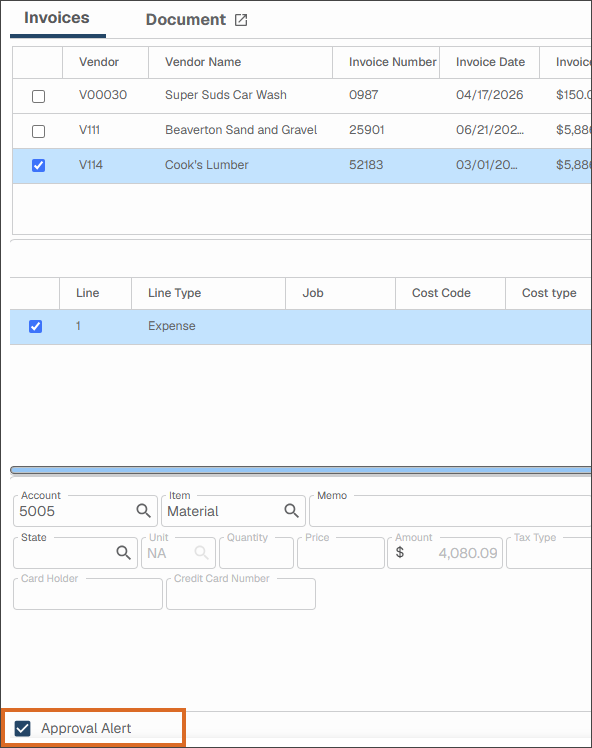
Invoices tab | In this view, the approved invoice displays with the line detail visible. |
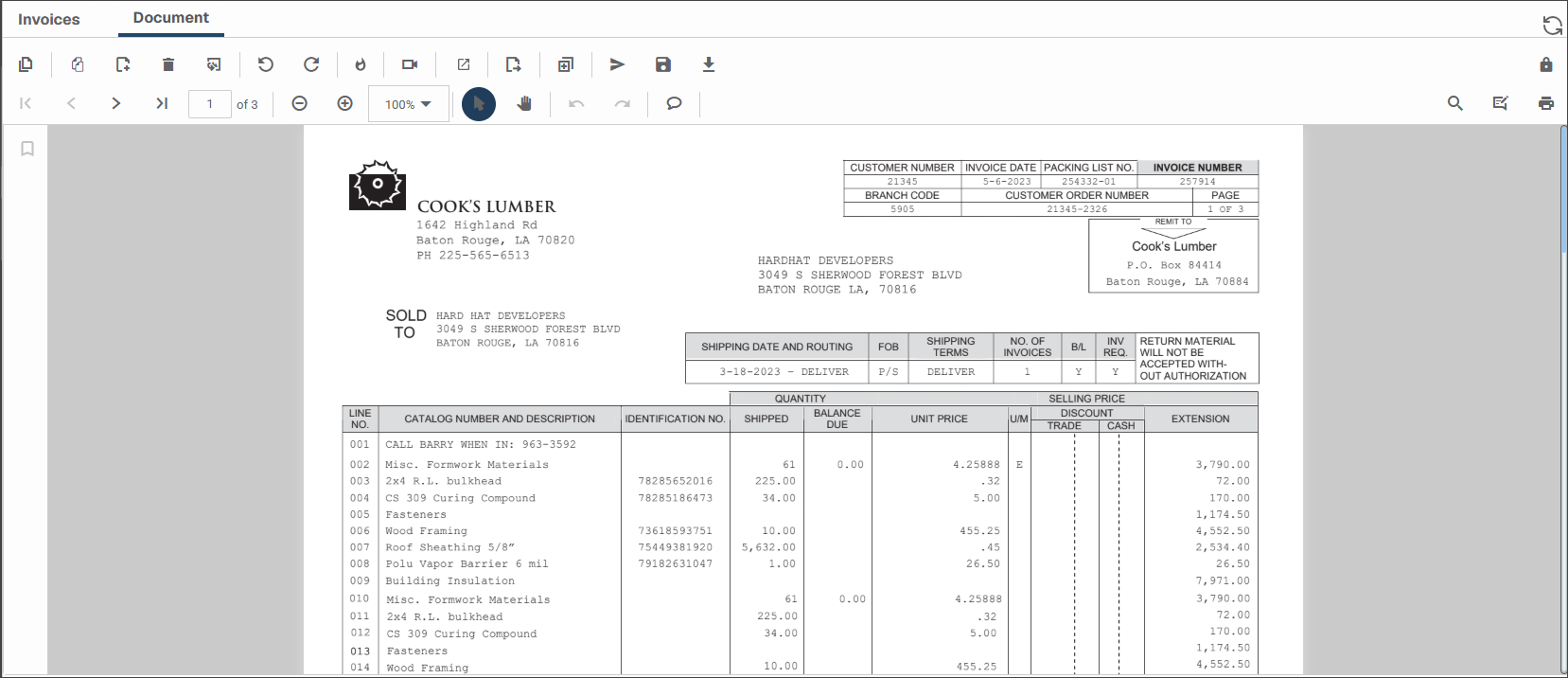
Document tab | Click this tab to open an image of the invoice document. On the Document tab, click the  to open a new Viewer window displaying an image associated with the active invoice. You can then manually move that Viewer window to a different monitor. This way you can view the invoice and the associated document simultaneously. With the Viewer window active, as you move from invoice to invoice, the image in the Viewer window automatically refreshes to display the associated image. to open a new Viewer window displaying an image associated with the active invoice. You can then manually move that Viewer window to a different monitor. This way you can view the invoice and the associated document simultaneously. With the Viewer window active, as you move from invoice to invoice, the image in the Viewer window automatically refreshes to display the associated image. |
Approval Alert check box | Invoices marked with this flag displays differently in Approve Invoices and the APFlow™ sidebar. NoteAn Approval Alert Note dialog may display, where you can enter an explanation for the approval alert in the text box. If this dialog does not display, it may be because a bridge setting Require Invoice Approval Alert Notes is not selected. For more information, see Universal Bridge Settings. |









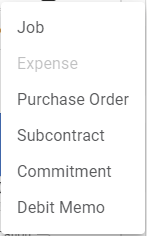
 icon to bring up the available line types.