Accounting Integration
The following sections describe the options available to you after exporting invoices to your accounting system from pVault®.
Vista™ by Viewpoint
When you export a batch of invoices to your Vista by Viewpoint accounting system, the invoices are added to AP Transaction Entry.
Complete the following steps to access and post the invoices in Vista:
Log in to Vista.
Select .
Click .
The Batch Selection for Vista Construction, Inc. dialog displays:
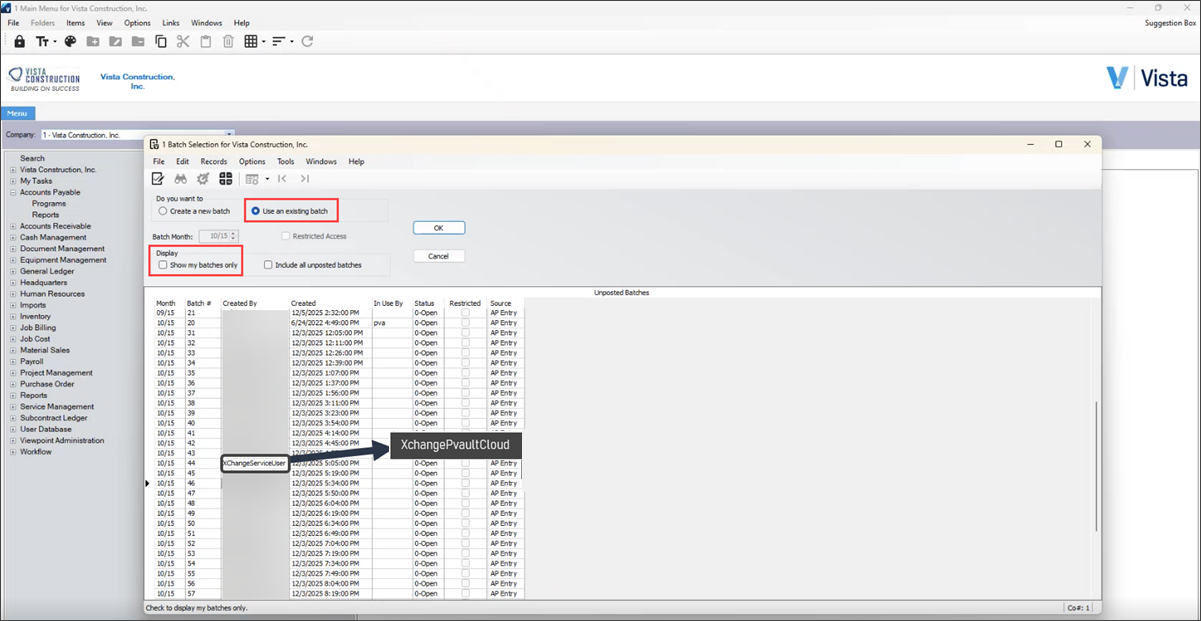
In the Batch Selection for Vista Construction, Inc. dialog, do the following:
Make sure that the radio button is selected.
In the Display section, deselect the check box.
Note
The batches exported from pVault should display XChangePvaultCloud in the Created By column.
Locate the appropriate Batch ID in the Batch # column. Highlight it and click .
The AP Transaction Entry Detail dialog displays.
Note
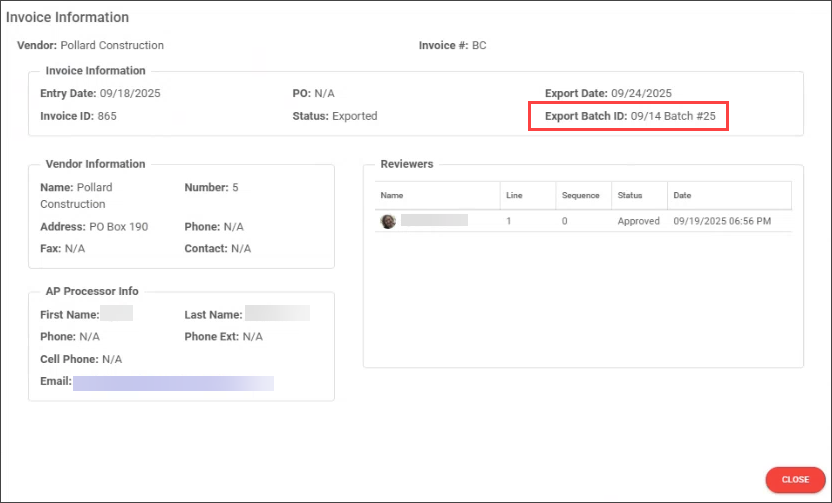
If you do not know the batch number, you can find it in pVault®. Select , then use the Document Status dropdown to filter the list to show invoices. Select an invoice from the list and open the Invoice Information dialog. The Export Batch ID that was generated by Vista displays as shown:
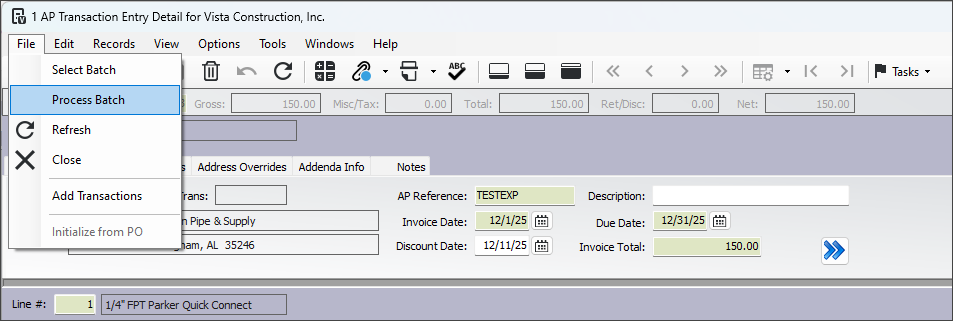
In the AP Transaction Entry Detail dialog, select to post your batch into Vista.
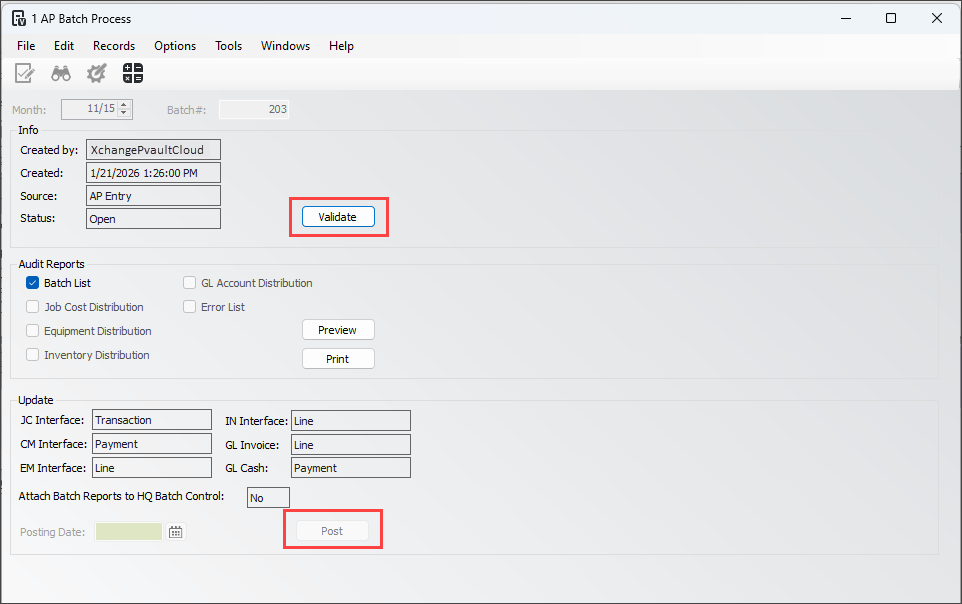
From the AP Batch Process dialog, click , then click .
Access Invoice Documents in pVault®
You can click the paperclip on the AP Transaction Entry Detail dialog to access the invoice in pVault.
In the Attachment Form dialog, either double click the attachment link or highlight the link and click .
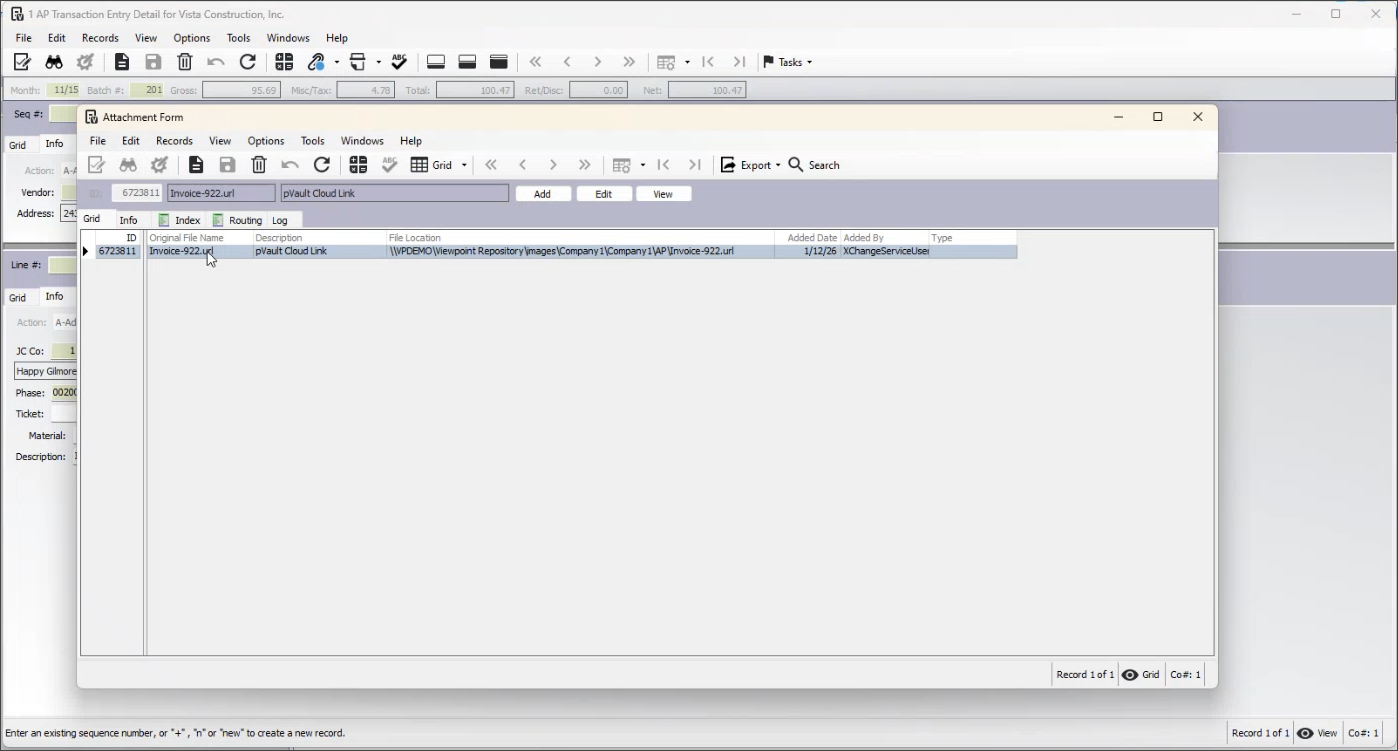
The invoice document opens in a pVault browser window.