Check Review Pane
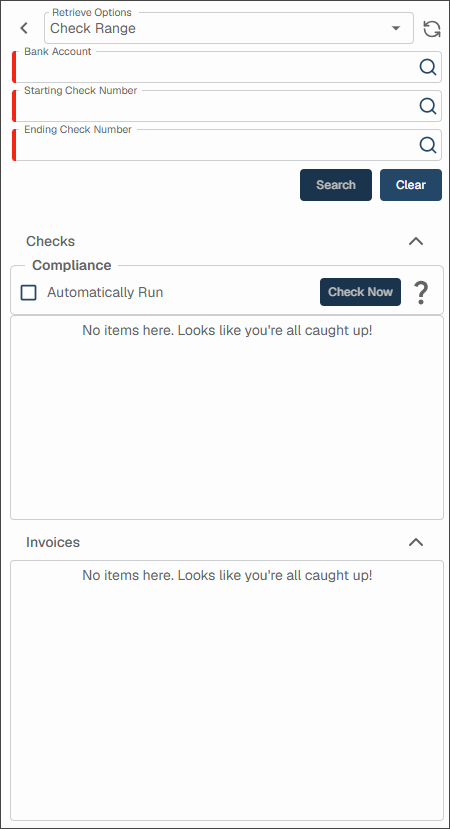
The following is an example of a blank Check Review pane.
pVault® "remembers" which View By choice was selected and that is the blank pane that displays the next time Payment Manager is accessed.
 |
The following is an example of a populated Check Review pane.
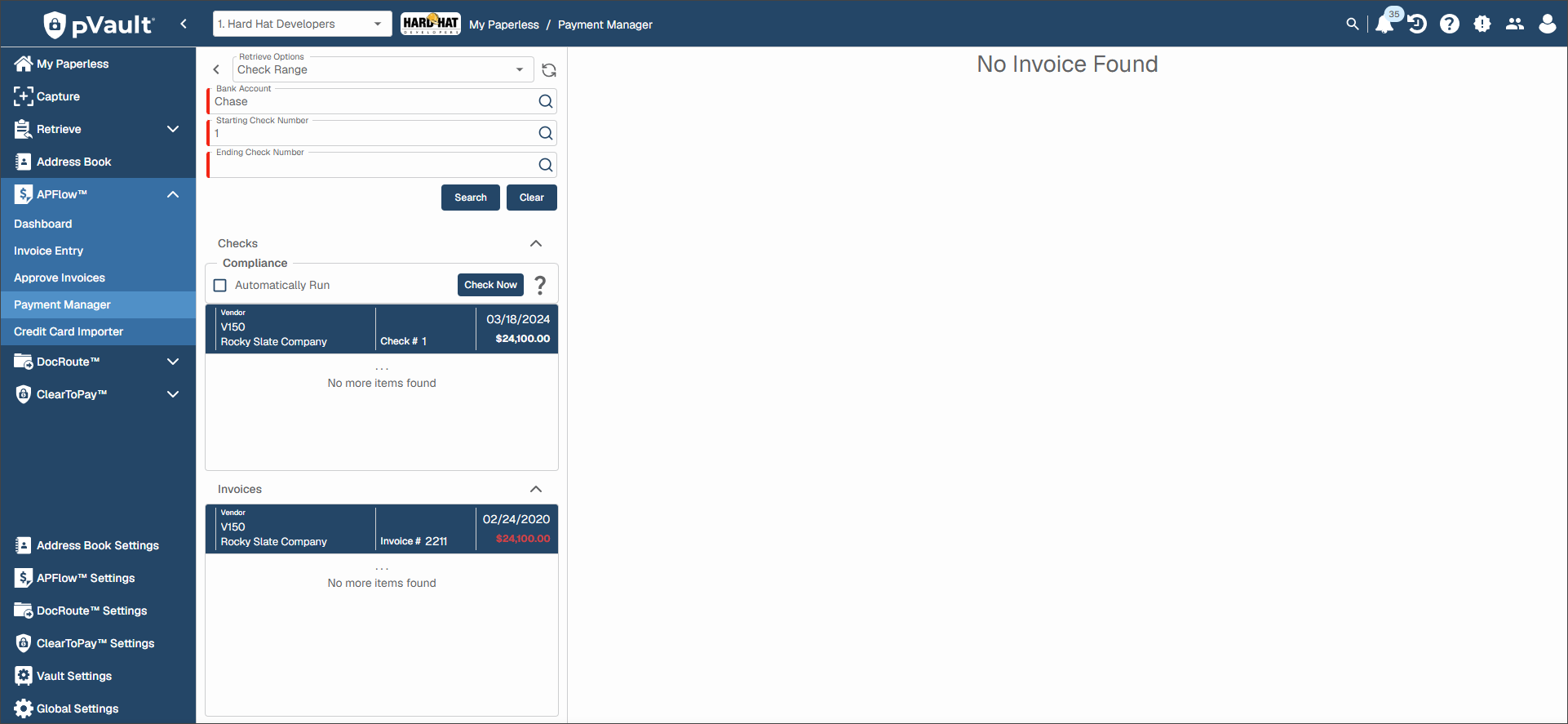
There are two distinct Retrieve Options views for the Check Review pane.
Check Range Retrieve Option
Bank Account Dropdown | Use the Click the appropriate bank account. The bank name displays in this field. | |
 | Refresh the pane. | |
Starting Check Number | This is where to enter the beginning of the check number range. | |
Ending Check Number | This is where to enter the end of the check number range. | |
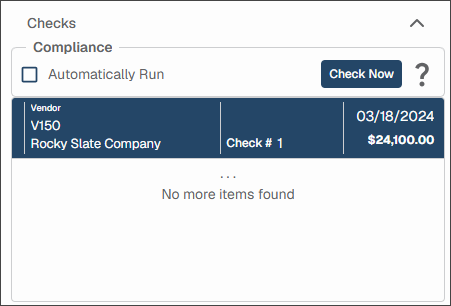
Search | Click . All checks within that check range for the selected bank displays in the pane. For example:
| |
Checks - Compliance | Checking the compliance of a payee's contract or insurance certification is performed through this Compliance functionality before approving the payment of associated invoices. Compliance checks can be performed either manually or systematically. Even if the payment is not entered into pVault®, compliance checking still occurs as a vendor check.
If the Automatically Run check box is selected, then all compliance checking is performed automatically when the entry in the grid is selected. There is no need to click for each item in the grid.
| |
Invoices | Highlight an entry in the Checks grid, and any invoices associated with that check display in the Invoices grid. Click an entry in the Invoices grid to open that invoice's read-only invoice entry data. |




Check Date Range Retrieve Option
Bank Account | Use the Click the appropriate bank account. The bank name displays in this field. | |
| Refresh the pane. | |
Starting Check Date | This is where to enter the beginning of the check date range. | |
Ending Check Date | This is where to enter the end of the check date range. | |
Search | Click . All checks within that check range for the selected bank display in the pane. For example:
| |
Checks - Compliance | Checking the compliance of a payee's contract or insurance certification is performed through this Compliance functionality before approving the payment of associated invoices. Compliance checks can be performed either manually or systematically. Even if the payment is not entered into pVault®, compliance checking still occurs as a vendor check.
If the check box is selected, then all compliance checking is performed automatically when the entry in the grid is selected. There is no need to click for each item in the grid.
| |
Invoices | Highlight an entry in the Checks grid, and any invoices associated with that check display in the Invoices grid. Click an entry in the Invoices grid to open that invoice's read-only invoice entry data. NoteThe associated invoice image only displays if it exists in the pVault system. If the invoice only exists in your bridged accounting system, the invoice pane displays No Invoice Found. |