APFlow™ Bridge Settings
Use the Bridge Settings page to customize certain aspects of the APFlow workflow. The Universal Bridge Settings apply to all vault bridge types, while certain accounting systems have additional, unique settings that can be configured.
Important
The bridge settings that display are only valid for your current vault.
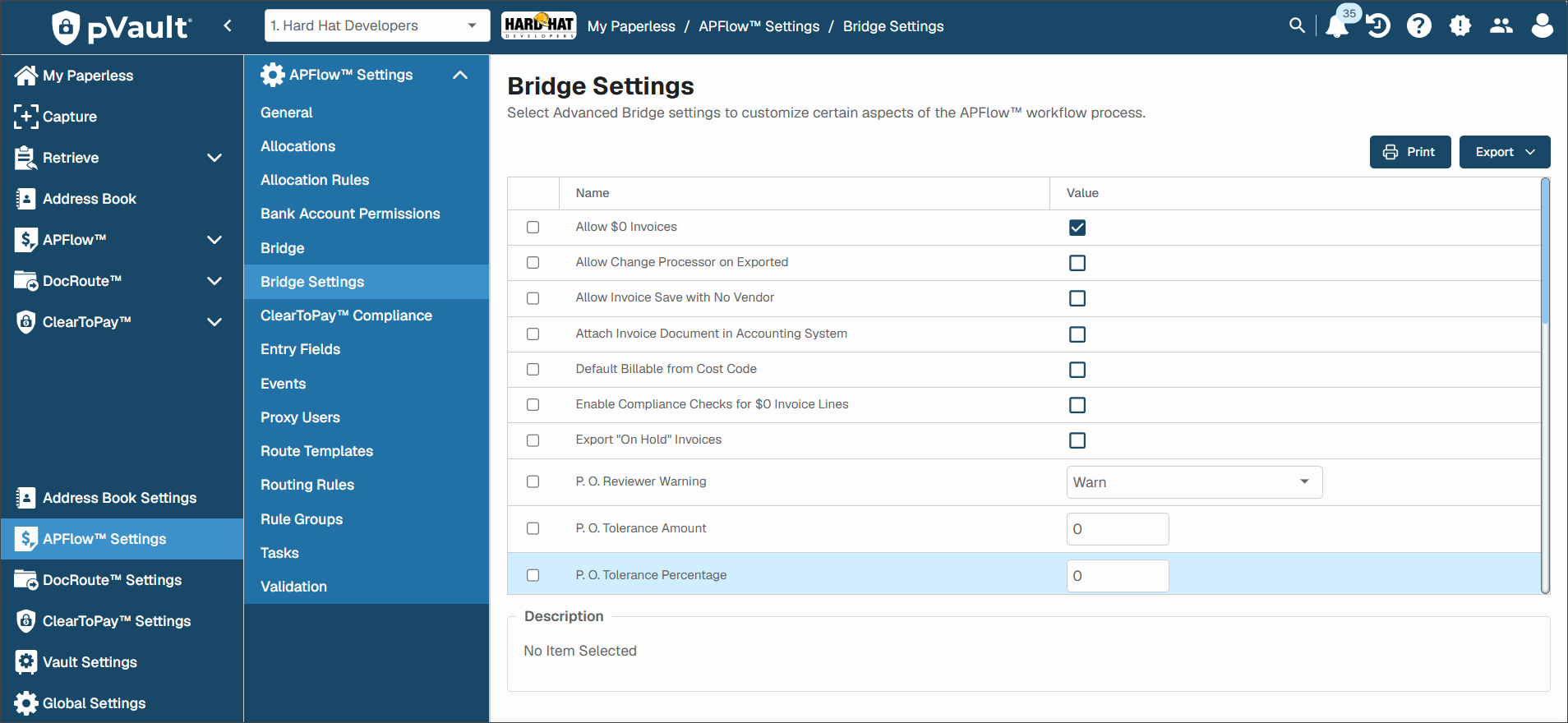
Complete the following steps to access the Bridge Settings page:
From My Paperless, click .
In the navigation bar, click .
Update the bridge settings as appropriate. Some settings are universal and are present for all accounting systems, while certain settings are only present if your vault is bridged to a specific accounting system. See the sections below for descriptions of each setting.
Use the descriptions below to determine which bridge settings you should set in the Value column for your vault.
Allow $0 Invoices | With the check box in the Value column selected, this bridge setting is active and invoices may be approved with an invoice total set to $0 (zero). With the check box in the Value column blank, invoices set to $0 (zero) cannot be approved. |
Allow Change Processor on Exported | Usually, no changes are made to invoices that are exported. This setting allows you to change only the name of the Processor associated with a specific exported invoice. With the check box in the Value column selected, this bridge setting is active and the change processor options are available in Invoice Manager for exported invoices. This also applies to Processors with the dropdown in Invoice Entry. With the check box in the Value column blank, change processor options are not available in Invoice Manager for exported invoices. |
Allow Invoice Save with No Vendor | With the check box in the Value column selected, this bridge setting is active and you can save an invoice without a vendor number. NoteAn invoice without a vendor number cannot be routed or approved, but this setting enables basic header information to be saved. With the check box in the Value column blank, you cannot save an invoice without a vendor number. |
Default Billable from Cost Code | With the check box in the Value column selected, this bridge setting is active and the billable flag on the invoice defaults based on the billable setting on the Cost Code/Task instead of the Job/Project billable setting. With the check box in the Value column blank, the billable flag on the invoice does not default based on the billable setting on the Cost Code/Task. |
Export "On Hold" Invoices | Allow invoices in an On Hold status to export. With the check box in the Value column selected, this bridge setting is active and invoices On Hold are allowed to export. This allows an invoice to display in the Ready for Export page. With the check box in the Value column blank, invoices On Hold are not allowed to export. |
P. O. Reviewer Warning | Determine what type of prompt generates to the Reviewer when a purchase order amount exceeds the committed amount. None is the default. Prompt Types:
|
P. O. Tolerance Amount | This is the amount beyond the established purchase order amount that is still considered acceptable. Any amount above the entered figure triggers the generation of a purchase order amount warning. $0 is the default. NoteWith a Warning, the recipient can still approve. |
P. O. Tolerance Percentage | This is the percentage beyond the established purchase order amount that is still considered acceptable. Any percentage above the entered figure triggers the generation of a purchase order percentage warning. 0% is the default. NoteWith a Warning, the recipient can still approve. |
P. O. Tolerance Type | Identify an amount value, a percentage value or both for the P.O. Tolerance Type. This is the amount or percentage beyond an established purchase order amount or percentage that is still considered acceptable. Any amount or percentage above the entered figure triggers the generation of a purchase order amount or percentage warning. $0 is the default. If Both is selected, both the amount and percentage tolerances must be met. If only one is met and the other is exceeded, the purchase order warning generated. NoteWith a Warning, the recipient can still approve. |
P. O. Warning | Determine what type of prompt generates to the Processor when a purchase order amount exceeds the committed amount. None is the default. Prompt Types:
|
Require Invoice Approval Alert Notes | With the check box in the Value column selected, this bridge setting is active and you are required to enter a note when marking an invoice for Approval Alert. With the check box in the Value column blank, no note is required if you mark an invoice for Approval Alert. |
Require Invoice "Do Not Pay" Notes | With the check box in the Value column selected, this bridge setting is active and you are required to enter a note when marking an invoice for Do Not Pay. With the check box in the Value column blank, no note is required if you mark an invoice for Do Not Pay. |
Require Invoice On Hold Notes | With the check box in the Value column selected, this bridge setting is active and you are required to enter a note when marking an invoice as On Hold. With the check box in the Value column blank, no note is required if you mark an invoice as On Hold. |
Require Invoice Reject Notes | With the check box in the Value column selected, this bridge setting is active and you are required to enter a note when marking an invoice Rejected. With the check box in the Value column blank, no note is required if you mark an invoice for Rejected. |
Require Invoice Reset to Pending Notes | With the check box in the Value column selected, this bridge setting is active and you are required to enter a note when marking an invoice Reset to Pending. With the check box in the Value column blank, no note is required if you mark an invoice Reset to Pending. |
Reviewer Sequence Threshold | Enter the sequence level at which the Reviewer must fully code the item being approved. 0 is the default. |
Subcontract Reviewer Warning | Determine what type of prompt generates to the Reviewer when a subcontract amount exceeds the committed amount. None is the default. Prompt Types:
|
Subcontract Tolerance Amount | This is the amount beyond the established subcontract amount that is still considered acceptable. Any amount above the entered figure triggers the generation of a subcontract amount warning. $0 is the default. NoteWith a Warning, the recipient can still approve. |
Subcontract Tolerance Percentage | This is the percentage beyond the established subcontract amount that is still considered acceptable. Any percentage above the entered figure triggers the generation of a subcontract percentage warning. 0% is the default. NoteWith a Warning, the recipient can still approve. |
Subcontract Tolerance Type | Identify an amount value, a percentage value or both for the Subcontract Tolerance Type. This is the amount or percentage beyond an established subcontract amount or percentage that is still considered acceptable. Any amount or percentage above the entered figure triggers a subcontract amount or percentage warning to generate. $0 is the default. If Both is selected, both the amount and percentage tolerances must be met. If only one is met and the other is exceeded, the subcontract warning generates. NoteWith a Warning, the recipient can still approve. |
Subcontract Warning | Determine what type of prompt generates to the Processor when a subcontract amount exceeds the committed amount. None is the default. Prompt Types:
|
In addition to the pVault® bridge settings (see Universal Bridge Settings for more information), the following bridge settings are specific to APFlow systems bridged to Acumatica.
Compliance Checks Limit to Required Only | With the check box in the Value column selected, this bridge setting is active and compliance checks only include entries marked as required. With the check box in the Value column blank, compliance checks do not only include entries marked as required. |
Enable Compliance Checks for $0 Invoice Lines | With the check box in the Value column selected, this bridge setting is active and compliance checks also include zero dollar invoice lines. With the check box in the Value column blank, compliance checks do not also include zero dollar invoice lines. |
Job Budget $0 Warning | With the check box in the Value column selected, this bridge setting is active and the job budget warning is applied when the budgeted amount is $0. With the check box in the Value column blank, the job budget warning is not applied when the budgeted amount is $0. |
Job Budget Reviewer Warning | Use the dropdown to override the job budget warning (this is the default) for a reviewer to either no notice or to an error. |
Job Budget Tolerance | Determine what type of prompt generates to the Reviewer when a job type/job cost entry exceeds the budget. Prompt Types:
|
Job Budget Warning | This is the dollar amount beyond the established budget amount that is still considered acceptable. Any amount above the entered figure triggers the generation of a budget warning. $0 is the default. NoteWith a Warning, the recipient can still approve. |
Processor Compliance Warnings | Determine what type of prompt generates to the Processor when vendor or subcontract items are out of compliance. None is the default. Prompt Types:
|
Reviewer Compliance Warning | Determine what type of prompt generates to the Reviewer when vendor or subcontract items are out of compliance. None is the default. Prompt Types:
|
In addition to the pVault® bridge settings (see Universal Bridge Settings for more information), the following bridge settings are specific to APFlow™ systems bridged to Sage Intacct.
Setting Name | Description |
|---|---|
Attach Invoice Document in Accounting System | With the check box in the Value column selected, this bridge setting is active and the invoice document is added as a file attachment to the invoice at the time of export. ImportantAfter you export the invoice to your Intacct accounting system, log in to Intacct. In the Accounts Payable section, a page with a pane similar to the following displays and includes an active link under the Attachment heading:  Click either the link or the Paperclip When left blank, the invoice document is not added as a file attachment. |
Processor Compliance Warning | ImportantBefore you start, in the Intacct accounting system, click . In the Insurance grid, enter the with the date and especially the date. In the Bridge Sync Logs, select the in the list and then click . If no activity is visible within 60 seconds, click to make sure the functionality is active. (See View Bridge Sync Logs for more information.) Determine if this setting should be set to Warning or Error. Then, if you systematically or manually approve an invoice either in Invoice Entry or Approve Invoice and the expiration date in Intacct has passed, a Validation Info message stating that compliance type(s) not compliant with an expiration date of whatever is set in Intacct displays. How you respond is based on the prompt type. Prompt Types:
|
Prompt for Posting Date during Export | With the check box in the Value column selected, this bridge setting is active and the posting date is prompted at the time of export if you have configured Intacct to capture the posting date under AP settings. The Posting Date field does not display on the Invoice Entry page. When left blank, the Posting Date field displays on the Invoice Entry page if configured in the Intacct accounting system. The posting date is not prompted at the time of export. |
Reviewer Compliance Warning | ImportantBefore you start, in the Intacct accounting system, click . In the Insurance grid, enter the with the date and especially the date. In the Bridge Sync Logs, select the in the list and then click . If no activity is visible within 60 seconds, click to make sure the functionality is active. (See View Bridge Sync Logs for more information.) Determine if this setting should be set to Warning or Error. Then, if you systematically or manually approve an invoice either in Invoice Entry or Approve Invoice and the expiration date in Intacct has passed, a Validation Info message stating that compliance type(s) not compliant with an expiration date of whatever is set in Intacct displays. How you respond is based on the prompt type. Prompt Types:
|
Use Standard Cost Code List in Invoice Entry | When the check box in the value column is selected, the lookup for the Cost Code is changed to the standard list. |
Use Standard Cost Type List in Invoice Entry | When the check box in the value column is selected, the lookup for the Cost Type is changed to the standard list. |

In addition to the pVault® bridge settings (see Universal Bridge Settings for more information), the following bridge settings are specific to APFlow™ systems bridged to Vista by Viewpoint.
Accruals Use Auto-Reversing Entries | ImportantIf not using the Accrual feature in pVault, this setting is not applicable. Job Entries require a change to the import template to set Reversal Status to True. With the check box in the Value column selected, this bridge setting is active and the accrual export file contains a single entry for each accrual and rely on Vista by Viewpoint auto-reversing functionality to post the reversal. General Ledger posts to the Auto Journal. Job entries requires a change to the import template to set Reversal Status to True. With the check box in the Value column blank, the accrual export file contains two entries and does not rely on Vista by Viewpoint's auto-reversing functionality to post the reversal. |
Allow GL Override on Invoice | In Invoice Entry, on non-expense line type entries (Job, Equipment, Purchase Order, Subcontract), the populated GL Account field reflects the Viewpoint General Ledger account default. This field is greyed out and cannot be changed. Allows overriding of GL accounts on the Invoice Entry page. |
AP Hold Code | This is where you set the default hold code that should be applied on any invoice placed on hold by a Reviewer, but the invoice is approved. When the invoice is approved but placed On Hold and the Hold Code field in the header is left blank, and the ABS setting Export On Hold Invoices is set to True, the On Hold invoice is eligible for export and the default hold code set up here is applied into the Hold Code field. If a hold code already exists on the invoice prior to the Reviewer placing it on hold, the originally placed hold code is applied and is not overridden by the default hold code set here. |
Clear Default Tax Code on Non Taxed PO / Subcontract Lines | In Vista, default tax codes can be created for Purchase Order and Subcontract lines. The Tax Code field displays in the details section of the invoice in Invoice Entry. When bringing in PO or Subcontract lines if there is no tax code on the line should the default tax code be cleared? |
Credit Card Importer - Turn Off Tax Calculation | Default tax calculations are set up in Vista. Turns off the tax calculation when editing invoices in the Credit Card Importer module. |
Default Pay Type | In Vista, Pay Type defaults can be created. The Pay Type field displays in the details section of the invoice in Invoice Entry. Determines whether the pay type field defaults within Invoice Entry page. |
Disable Custom Invoice Validation | ImportantThis is an all or nothing setting. Turns off custom invoice validation rules in APFlow. |
Disable Invoice Routing | ImportantThis is an all or nothing setting. Turns off invoice routing in APFlow. |
Document Match - Retrieve potential matching POs in APFlow | With the check box in the Value column selected, this bridge setting is active and potential matches for POs in Document Match are retrieved. With the check box in the Value column blank, potential matches for POs in Document Match are not retrieved. |
Enable Compliance Checks for $0 Invoice Lines | With the check box in the Value column selected, this bridge setting is active and compliance checks also include zero dollar invoice lines. With the check box in the Value column blank, compliance checks do not include zero dollar invoice lines. |
Enable Approve Invoices Job Filters | ImportantEnabling this feature does not display a filter for all job numbers; it only displays the job numbers corresponding to the job numbers populated on the invoices currently routed to that Reviewer. If none of the invoices currently routed to the Reviewer contain a job number, no job numbers display as a filter. Enable reviewers to group invoices by job. |
Enable Approve Invoices Work Order Filters | ImportantEnabling this feature does not display a filter for all work orders; it only displays the work orders corresponding to the invoices currently routed to the Reviewer. If invoices do not contain a work order, no work order numbers display as a filter. Work Order filters include Equipment (EM Equipment) and Service (SM Work Order). Enable reviewers to group invoices by work order. |
Export Path | During the export process a .txt file is generated and must be saved. This file is necessary to import into the bridged accounting system. Identify a default file path here where all export files are saved. |
Hide Labor Codes | In Vista you can identify a phase code as a Labor/Burden. Hide labor/burden phase codes in Invoice Entry and Approve Invoices. |
Hide Subcontract Codes | In Vista you can identify a phase code as a "subcontract" code. Hide subcontractor phase codes in Invoice Entry and Approve Invoices. |
Job Budget $0 Warning | With the check box in the Value column selected, this bridge setting is active and the job budget warning is applied when the budgeted amount is $0. With the check box in the Value column blank, the job budget warning is not applied when the budgeted amount is $0. NoteWith a Warning, the recipient can still approve. |
Job Budget Reviewer Warning | Determine what type of prompt generates to the Reviewer when a job type/job cost entry exceeds the budget. Prompt Types:
|
Job Budget Tolerance | This is the dollar amount beyond the established budget amount that is still considered acceptable. Any amount above the entered figure triggers the generation of a budget warning. $0 is the default. NoteWith a Warning, the recipient can still approve. |
Job Budget Warning | Determine what type of prompt generates to the Processor when a job type/job cost entry exceeds the budget. Prompt Types:
|
Launch AP Export Detail Report | Launch AP Export Detail Report after exporting. ImportantThis report can be reproduced through the menu at any time. Click Reports List for details. |
Override Lock Phases for all Jobs | In Vista, there is a check box (Phases on This Job Are Locked) in the JC Jobs > Info tab. If this check box is populated, phases for this job are locked so that only those phases/cost types assigned to the job can be used when posting committed or actual costs in the Vista Accounting modules. Specific phases on a job can be "locked," meaning no more costs can be assigned to that phase of a job. With the check box in the Value column selected, the job costing lists operate as if the phases are locked on the job for AP invoice entry lookups. Validation only allows entry of phases and cost types assigned to the job. With the check box in the Value column blank, the setting on the Job in Vista is honored. |
P. O. Reviewer Warning | Determine what type of prompt generates to the Reviewer when a purchase order amount exceeds the committed amount. None is the default. Prompt Types:
|
P. O. Tolerance Dollar Amount | This is the dollar amount beyond the established purchase order amount that is still considered acceptable. Any amount above the entered figure triggers the generation of a purchase order amount warning. $0 is the default. NoteWith a Warning, the recipient can still approve. |
P. O. Tolerance Percentage | This is the percentage beyond the established purchase order amount that is still considered acceptable. Any percentage above the entered figure triggers the generation of a purchase order percentage warning. 0% is the default. NoteWith a Warning, the recipient can still approve. |
P. O. Tolerance Type | Identify a dollar value, a percentage value or both for the P.O. Tolerance Type. This is the dollar amount or percentage beyond an established purchase order amount or percentage that is still considered acceptable. Any amount or percentage above the entered figure triggers the generation of a purchase order amount or percentage warning. $0 is the default. If Both is selected, both the dollar and percentage tolerances must be met. If only one is met and the other is exceeded, the purchase order warning generated. NoteWith a Warning, the recipient can still approve. |
P. O. Warning | Determine what type of prompt generates to the Processor when a purchase order amount exceeds the committed amount. None is the default. Prompt Types:
|
PO/SUB Recalculate Units | Recalculate the units on a PO or subcontract line instead of unit cost when overriding the calculated gross. |
Processor Compliance Warnings | Determine what type of prompt generates to the Processor when vendor or subcontract items are out of compliance. None is the default. Prompt Types:
|
Reviewer Auto Load Other Vendor Documents | With the check box in the Value column selected, this bridge setting is active and configured "Other" documents automatically load when viewing Document Match in Reviewer mode. With the check box in the Value column blank, Reviewers must manually click to view these documents. |
Reviewer Compliance Warning | Determine what type of prompt generates to the Reviewer when vendor or subcontract items are out of compliance. None is the default. Prompt Types:
|
Subcontract Reviewer Warning | Determine what type of prompt generates to the Reviewer when a subcontract amount exceeds the committed amount. None is the default. Prompt Types:
|
Subcontract Tolerance Dollar Amount | This is the dollar amount beyond the established subcontract amount that is still considered acceptable. Any amount above the entered figure triggers the generation of a subcontract amount warning. $0 is the default. NoteWith a Warning, the recipient can still approve. |
Subcontract Tolerance Percentage | This is the percentage beyond the established subcontract amount that is still considered acceptable. Any percentage above the entered figure triggers the generation of a subcontract percentage warning. 0% is the default. NoteWith a Warning, the recipient can still approve. |
Subcontract Tolerance Type | Identify a dollar value, a percentage value or both for the Subcontract Tolerance Type. This is the dollar amount or percentage beyond an established subcontract amount or percentage that is still considered acceptable. Any amount or percentage above the entered figure triggers a subcontract amount or percentage warning to generate. $0 is the default. If Both is selected, dollar and percentage tolerances must be met. If only one is met and the other is exceeded, the subcontract warning generates. NoteWith a Warning, the recipient can still approve. |
Subcontract Warning | Determine what type of prompt generates to the Processor when a subcontract amount exceeds the committed amount. None is the default. Prompt Types:
|
User Estimated Job Costs Instead of Forecasted | This Advanced Bridge Setting refers to job cost calculations and identifies which job costs are to be used. With the check box in the Value column selected, this bridge setting is active to use Estimated Job Costs. With the check box in the Value column blank, this bridge setting uses Forecasted Job Costs. |
Use P. O. Receiving | Do you use the receiving functionality in Your accounting software for POs? With the check box in the Value column selected, the line type Receiving Ticket Quick List displays in Invoice Entry. This line type allows you to code invoices against a Receiving Ticket entry entered in Vista. With the check box in the Value column blank, the Receiving Ticket Quick List and the Receipt # field are not available. |